Fix Ruffle Emulator CORS Errors for Local Flash Files
A local SWF should be the easiest thing in the world: double-click the file, let Ruffle spin up, and get back to that snappy old Flash loop in under five minutes.
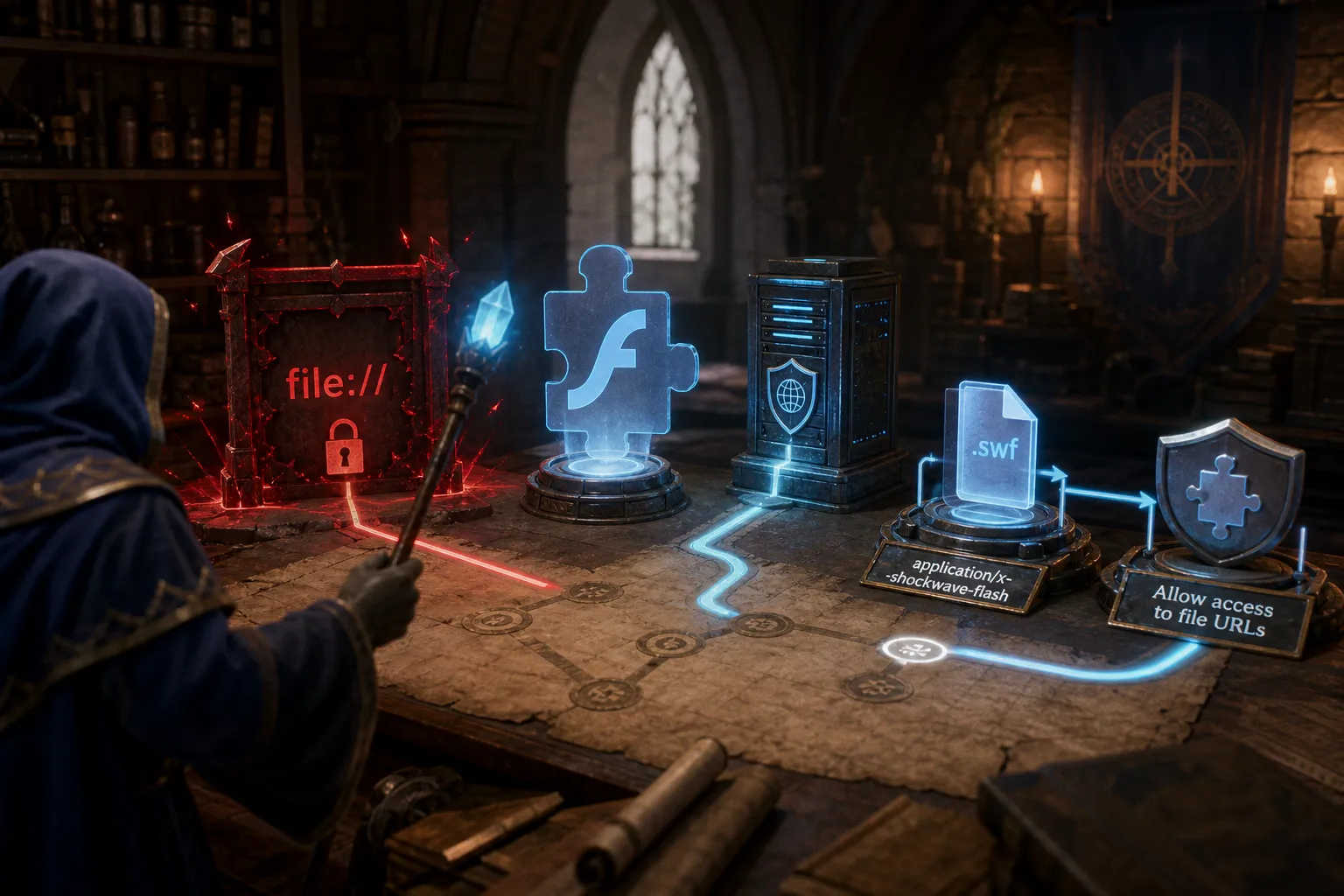
If you are searching for how to check fix ruffle emulator cors errors for local flash, the short version is this: the problem usually is not the SWF, and it usually is not Ruffle “failing.” It is the browser refusing to let a file opened with file:// reach across to other local files, assets, scripts, or data. The smooth fix is to serve the folder through a small local web server, then open the SWF through http://localhost, not directly from your drive.
Ruffle is not asking you to hack around the browser. It is asking you to treat your local Flash folder like a tiny website.
Why Browsers Block Local Flash Files via the File Protocol
Ruffle runs inside the modern browser world. That is the magic and the catch. It uses Rust and WebAssembly to bring Flash content back without the old Adobe Flash Player plugin, but it still has to obey the browser’s security model.
When you open a SWF directly from your desktop or downloads folder, the address starts with file://. That looks harmless because everything is on your own machine. But from the browser’s point of view, local files are a sensitive space. If web content could freely read neighboring files on your disk, a bad page could start poking around places it has no business touching.
Classic Flash games often are not one neat, self-contained blob. A SWF might try to load:
- external images or audio files;
- XML level data;
- another SWF used as a preloader or asset container;
- save/config files;
- fonts, skins, or language packs;
- relative paths such as
assets/music/theme.mp3.
On the old web, these requests came from a server. In your archive folder, they may be sitting beside the SWF. But when opened through file://, the browser can block those fetches and report them as CORS or cross-origin problems.
That is why the same game can feel broken locally but behave perfectly once served from a local address. Ruffle is doing its part; the browser is saying, “Not from the raw file system, thanks.”
The quick smell test
You will notice a few common patterns when this is really a CORS/local-file issue:
1. The Ruffle player appears, but the game never fully loads.
Maybe the preloader sticks at 0%, or the title screen never reaches its first button.
2. The browser console mentions CORS, origin, fetch, or blocked access.
The exact wording varies by browser, but the mood is always the same: one file tried to request another file, and the browser refused.
3. The SWF works when embedded on a real website or preservation project, but not from your desktop.
That tells you the game is probably playable under Ruffle, just not from the way you are launching it.
4. Games with a single SWF behave better than games with folders full of assets.
A compact arcade game may run right away. A larger adventure or dress-up game with external content is more likely to trip over local access rules.
This is also where the phrase “how to check fix ruffle emulator cors errors for local flash unblocked” gets a little messy. “Unblocked” here should not mean disabling browser safety globally. It means using the correct local setup so your own archived game files are served in a browser-friendly way.
Set Up a Local Web Server Instead of Opening the SWF Directly
The clean fix is to run a small local development server inside the folder that contains your SWF and its assets. You are not publishing the game to the internet. You are just giving your browser a normal http:// address to load from.
For most Flash archive tinkering, this takes less time than hunting through forum threads. The common local port for a quick Python server is 8000, so your game will usually open from an address like http://localhost:8000/game.swf.
Here is the practical flow I use when testing old browser games with Ruffle:
1. Put the SWF and its asset folders together.
Keep the original folder structure if you have it. If the SWF expects assets/sound.mp3, do not flatten the folder and hope the game guesses.
2. Open a terminal or command prompt in that folder.
On Windows, you can often right-click inside the folder and choose a terminal option. On macOS or Linux, open Terminal and move into the folder.
3. Start a local server.
If Python is installed, the usual command is python -m http.server 8000 or, on some systems, python3 -m http.server 8000.
4. Open the game through the browser using localhost.
Go to http://localhost:8000/ and choose the SWF, or enter the direct path such as http://localhost:8000/mygame.swf.
5. Let Ruffle load the SWF from that address.
If you use a Ruffle web page wrapper, point it at the localhost URL. If you use the extension, open the localhost-hosted file rather than the file:// version.
The moment-to-moment difference is satisfying. Instead of the game stalling at a silent white rectangle, you will often see the Ruffle splash, then the familiar preloader, then the menu. The loop finally clicks: input, response, sound, animation. That is the whole point.
| Launch method | What the browser sees | Typical result with Ruffle |
|---|---|---|
Double-clicking game.swf | file:// local file | CORS blocks are common, especially with external assets |
| Dragging SWF into browser | file:// local file | May load simple SWFs, but fragile for multi-file games |
| Python local server | http://localhost:8000/ | Usually the best quick fix for local testing |
| Node local server | http://localhost:<port>/ | Also solid, especially if you already use Node tools |
| Public web hosting | https:// web address | Works if hosting sends the right headers and MIME types |
A tiny local server gives the browser an origin it understands. That origin is usually http://localhost:8000. Now when the SWF asks for nearby files, those requests are happening inside a normal web context instead of from raw disk access.
The goal is not to make Flash less safe. The goal is to make your archive behave like the website it originally came from.
Keep the Folder Structure Intact
This part sounds boring until it saves you an hour. Many Flash games were built with exact relative paths. The SWF may not be searching intelligently; it may be asking for a specific filename in a specific subfolder. If that file moved, the game does not politely explain the problem. It just hangs.
Say your folder looks like this:
game.swfdata/levels.xmlimg/title.pngsound/click.mp3preloader.swf
Serve the parent folder, not just the SWF by itself. Then open the SWF from the server address. If you only copy game.swf to a fresh folder, Ruffle may launch correctly but the game will still fail when it reaches for missing content.
You will notice this most in old web games with level editors, episodic chapters, language selection, or big menus. The first screen might load, then the first level refuses to begin. That does not always mean CORS. Sometimes the asset simply is not where the SWF expects it to be. But serving the full folder correctly removes the biggest source of confusion first.
A sensible test order looks like this:
1. Confirm you are not using file://.
If the address bar starts with file, stop there and switch to a local server.
2. Confirm the SWF path works over http://localhost.
The direct SWF URL should load or trigger Ruffle from the local server.
3. Check whether companion files are also reachable.
If the SWF needs data/levels.xml, try opening http://localhost:8000/data/levels.xml in the browser. If that returns a missing file error, the folder structure is wrong.
4. Only then start blaming emulation compatibility.
Ruffle is impressive, but not every legacy Flash feature behaves perfectly. Still, do not jump to that conclusion before the basic serving setup is clean.
Configure MIME Types for SWF Files
Ruffle also depends on the server sending Flash files with the right MIME type. For SWF files, the expected MIME type is application/x-shockwave-flash.
On simple local servers, this is often handled well enough automatically. But if you are using a custom server, a static hosting setup, or a development tool with unusual defaults, MIME type trouble can look strangely similar to a loading failure. The file exists. The path is right. The browser reaches it. Yet Ruffle does not get what it expects.
Here is the plain-English version: when the browser asks for game.swf, the server should not shrug and label it as generic text or an unknown download. It should identify it as a Flash movie.
A few clues that MIME type may be involved:
- the SWF downloads instead of playing;
- the browser displays gibberish-like binary text;
- Ruffle says it cannot load or parse the movie even though the file path is correct;
- hosted SWFs fail while the same file works from a better-configured local server.
For local testing, Python’s basic server is usually a fine first move. If you move to a more permanent archive setup, make sure .swf maps to application/x-shockwave-flash. This matters more when you are organizing a collection for repeated play, a classroom lab, or a public preservation page.
And while we are talking about modern web packaging: the old Flash archive world and today’s digital ownership experiments sit in very different corners, but both run into the same basic truth that access rules matter. If you follow how brands use token-gated access and membership systems, this overview of Brand NFTs is a useful modern contrast to the very different preservation problem we are solving with Ruffle.
If You Use the Ruffle Browser Extension, Enable Local File Access
Ruffle can be used in more than one way. Some people embed Ruffle on a local HTML page. Some use a hosted Ruffle player. Others install the Ruffle browser extension and let it catch SWF content as they browse.
If you are using the extension and still want to open local files, the browser may require an extra permission. In Chrome and Edge, for example, extensions can have a setting along the lines of “Allow access to file URLs.” Without that, the extension may not be allowed to interact with local files at all.
That setting is not a magic CORS bypass. It simply allows the extension to see local file URLs. For dependable multi-file Flash games, I still prefer the local server route because it creates a cleaner http://localhost environment. But extension permission is worth checking if your setup depends on dragging SWFs into the browser or opening saved pages from disk.
A practical split:
| Setup | Best use | What to watch |
|---|---|---|
| Ruffle extension with web pages | Playing SWFs on sites you visit | Site compatibility and browser extension permissions |
| Ruffle extension with local files | Quick one-off tests | Local file access may need to be enabled |
| Ruffle self-hosted player | Curated archive folders | Server paths and MIME types matter |
| Ruffle with local development server | Testing old game folders | Usually the smoothest way around CORS blocks |
My preference is simple: if I am checking one tiny SWF, I might try the extension. If I am sorting a real folder of classic web games, I start a local server. It keeps the test fair. If the game fails after that, I know I am looking at a more interesting problem than “the browser did exactly what it was designed to do.”
Read the Browser Console Without Getting Lost in It
You do not need to become a web developer to troubleshoot Ruffle CORS errors, but the browser console is still useful. Think of it as the game’s loading chatter. Some of it is noise. Some of it points straight at the stuck gear.
Open your browser’s developer tools and look at the Console or Network tab after the game fails. You are looking for a few friendly tells:
- CORS or cross-origin language means the browser blocked a request because of where it came from.
file://in the error message means you are still dealing with local-file restrictions.- 404 or not found means the SWF asked for a file that is missing or in the wrong folder.
- MIME type warnings mean the server may be labeling the SWF or assets incorrectly.
- Ruffle compatibility messages may point to ActionScript or Flash features that are not fully supported.
The Network tab can be especially helpful because it shows what the game tried to load. If you see levels.xml fail, that is more concrete than a blank screen. If you see a second SWF blocked, you know the game is built in pieces. If every asset loads successfully and the game still breaks at a specific interaction, then the issue may not be CORS at all.
The rhythm I like is: fix the obvious environment problem first, then test the game again. Do not change five things at once. Browser game troubleshooting is much more fluid when you keep each move small.
CORS Error or ActionScript Emulation Gap?
Here is the tricky bit: not every Ruffle failure that looks like a loading problem is a CORS problem. Some older Flash games rely on ActionScript behavior or Flash Player quirks that Ruffle may not fully emulate yet. This is especially possible with more complex ActionScript 3.0 content.
The confirmed CORS/local-file fix is serving files over http:// or https://, not file://. But if you have already done that, your MIME type is correct, companion assets are loading, and the game still breaks, you may be looking at an emulation gap.
The difference matters because the solutions are different.
| Symptom | More likely cause | What to try next |
|---|---|---|
Error mentions CORS, origin, or file:// | Browser local-file restriction | Serve the folder through localhost |
| Preloader cannot fetch assets | Folder path or CORS issue | Preserve folder structure and use local server |
| SWF downloads instead of playing | MIME type issue | Set .swf to application/x-shockwave-flash |
| Game loads menu but breaks on a specific mechanic | Possible emulation gap | Test another Ruffle build or compare with preservation archives |
| Missing music, levels, or images | Missing external files | Check Network tab for failed asset requests |
| Extension does nothing with local SWF | Extension lacks local file permission | Enable local file URL access in browser settings |
This is where I try to be optimistic but honest. Ruffle has made a huge chunk of old web gaming feel alive again directly in the browser. Lightweight arcade titles, puzzle games, dress-up games, menu-driven toys, and plenty of old-school browser games can feel surprisingly snappy. But Flash was a sprawling platform. Some titles ask for features that are still rough or incomplete in emulation.
So, if your local server setup is clean and the game still refuses to cooperate, do not keep hammering at CORS settings. You may need to test the same SWF in another preservation environment, compare it with an archived version, or wait for Ruffle compatibility to improve.
A Clean Troubleshooting Run From Blank Screen to Playable Game
Let’s put the whole loop together in the order I would actually use it.
1. Start with the address bar.
If the SWF is loading from file://, assume that is the problem until proven otherwise.
2. Move the entire game folder into one clean test directory.
Keep subfolders and filenames unchanged. Do not rename things casually; old Flash projects can be fussy.
3. Run a local server from that directory.
Python’s http.server on port 8000 is the common quick path. Open the folder through http://localhost:8000/.
4. Launch the SWF from the local server address.
The Ruffle player should now see the SWF as web-served content, not as a raw file from disk.
5. If it still fails, check the console and Network tab.
Look for blocked requests, missing files, or MIME type complaints.
6. Confirm the SWF MIME type if you are using custom hosting.
.swf should be served as application/x-shockwave-flash.
7. If using the browser extension, check local file permissions.
This matters for extension-based local testing, especially in Chrome or Edge.
8. After the environment is clean, consider Ruffle compatibility.
If assets load and there are no CORS-style blocks, the remaining issue may be ActionScript support rather than your setup.
That sequence keeps you from chasing ghosts. It also makes your archive testing repeatable. Once you have a known-good local server habit, every game gets the same fair shake.
What Not to Do
A few tempting fixes are not worth it.
Do not disable browser security globally. That is a messy trade for a retro game session, and it trains you into a bad habit. Do not assume every blank Ruffle screen is a CORS failure. Do not rip SWFs out of their original folders and expect larger games to stay intact. And do not keep refreshing the same file:// URL while hoping Ruffle suddenly becomes allowed to fetch blocked assets.
The better move is calmer: serve locally, preserve paths, verify MIME type, then test compatibility.
My Take: Make Local Flash Feel Like the Web Again
Ruffle CORS errors are frustrating because they interrupt the best part of retro browser gaming: that instant, low-friction jump from file to play. But the fix is not exotic. For local Flash files, the browser wants a proper web-style origin. Give it one with a local server, and many games snap back into their intended rhythm.
Once you have that setup, your old SWF folder stops feeling like a pile of stubborn files and starts feeling like a small playable archive. That is the sweet spot: quick launch, clean controls, no plugin drama, and a troubleshooting path that makes sense.
If you are in the mood to keep digging through preserved web-game history after this, I would line up three nearby lanes: try more Ruffle-friendly classic Flash arcade games first, explore BlueMaxima’s Flashpoint for heavier preservation work, and check Internet Archive software collections when you want a broader retro browser-game rabbit hole. For quick local testing, though, start with localhost. It is the least flashy fix, and usually the one that gets you playing fastest.