Apply Proxy Server Exceptions to Fix Game Connection Errors
You sit down, you have ten minutes between tasks, and you just want a quick browser game to reset your head. You load the page, the spinner kicks in, and then — nothing. A vague error message stares back at you. Maybe it says ERR_PROXY_CONNECTION_FAILED.
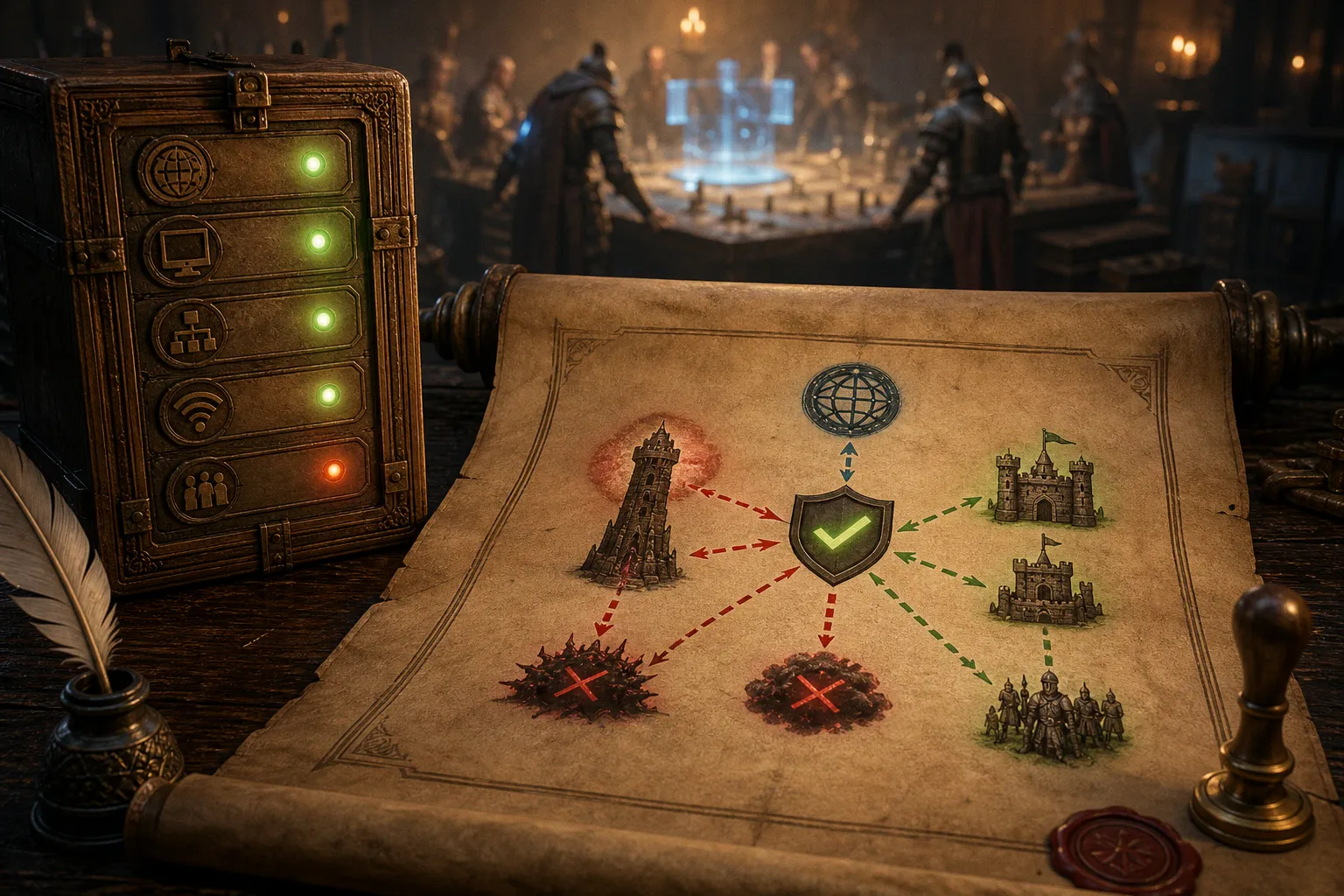
You sit down, you have ten minutes between tasks, and you just want a quick browser game to reset your head. You load the page, the spinner kicks in, and then — nothing. A vague error message stares back at you. Maybe it says ERR_PROXY_CONNECTION_FAILED. Maybe it just times out and shrugs. Either way, your session is dead before it started. The culprit, more often than people realize, is a proxy server standing between you and the game server, silently filtering or delaying the traffic your browser needs to make that snappy connection happen.
The good news? You can fix this without begging your IT department or buying anything. By adding proxy server exceptions — specific addresses that tell your system "skip the proxy for these" — you can route game traffic directly to its destination. It takes about three minutes of configuration, and the difference is immediate: pages that hung for thirty seconds now load in under two. In this guide, I will walk you through exactly how to set those exceptions on Windows and in Firefox, how wildcards save you from typing a hundred lines, and when to recognize that no exception rule will get you through.
Why Proxies Block Your Games in the First Place
Before you touch any settings, it helps to understand what is actually happening when a proxy gets in the way. Most schools, workplaces, and even some public Wi-Fi setups route all web traffic through an intermediary server. That proxy inspects each request, decides whether to allow it, and then either forwards it or drops it. Browser games — the kind hosted on sites you load directly in Chrome or Edge — frequently hit this wall because their domains do not match the "approved list" the proxy enforces.
You will notice the symptoms immediately: long loading screens, stalled asset downloads, or authentication loops that never resolve. The proxy is not malicious; it is just doing its job. But its job and your gameplay goals are not aligned.
A proxy exception does not hack anything — it simply tells your browser: "For these addresses, talk to the internet directly, not through the middleman."
The key fact is this: exceptions do not turn off the proxy. Everything else still flows through it. You are surgically carving out a lane for game traffic while leaving the rest of the network policy untouched. That is why this approach works in restricted environments — you are not dismantling security, you are routing around it for specific domains.
Configuring Windows System-Wide Exceptions for Chrome and Edge
Here is the part that surprises most people: Google Chrome and Microsoft Edge do not have their own proxy settings on Windows. They inherit whatever the operating system is configured to use. So when you set up exceptions in Windows, you are setting them up for both browsers at once. One fix, two browsers covered.
Step-by-Step on Windows 10 and 11
1. Press Win + I to open Settings.
2. Navigate to Network & Internet → Proxy.
3. Scroll down to Manual proxy setup and click Edit (or Set up if it is not yet configured).
4. In the Exceptions text box (sometimes labeled "Don't use the proxy server for addresses beginning with"), enter the domains or IPs you want to bypass.
5. Separate each entry with a semicolon (;) — this is the standard delimiter on Windows.
6. Make sure the checkbox "Don't use the proxy server for local (intranet) addresses" is enabled. This prevents your system from wasting a round-trip through the proxy for anything on your local network, which matters if you ever play LAN-based or local multiplayer titles.
7. Click Save.
That is it. The next time Chrome or Edge tries to reach one of those addresses, it skips the proxy entirely. You will notice the change on your next page load — the latency drop is often dramatic.
What to Enter in the Exceptions Box
This is where most tutorials hand-wave, so let me be concrete. If your unblocked games site lives at games.example-school.com, you type:
If the game pulls assets from a CDN at cdn.example-games.net, add that too:
A practical exception list for browser gaming might look like this:
| Entry | What It Covers |
|---|---|
localhost | Your own machine — essential for any local dev tools or test servers |
127.0.0.1 | Loopback IP address, the numeric equivalent of localhost |
*.gamedomain.com | All subdomains of a game host (wildcard — more on this below) |
cdn-assets.gamecdn.net | A specific CDN that serves sprites, audio, or textures |
192.168.1.* | Your local network range — useful for multiplayer over LAN |
Add as many lines as you need. The string can get long, but Windows handles it well within practical limits. Just keep each entry on the same line, separated by semicolons.
Managing Independent Network Rules in Mozilla Firefox
Firefox is the rebel here. Unlike Chrome and Edge, it does not follow the Windows system proxy by default — it maintains its own configuration. That gives you finer control, but it also means a one-time extra setup step.
Firefox Proxy Exceptions
1. Open Firefox and click the hamburger menu (three horizontal lines) in the top-right corner.
2. Go to Settings → scroll down to Network Settings → click Settings…
3. Select Manual proxy configuration.
4. Enter your HTTP and HTTPS proxy addresses (your network admin or the system settings will have these).
5. In the "No Proxy For" text box, list the addresses that should bypass the proxy.
6. Firefox uses a comma (,) as its delimiter — not semicolons like Windows. This is a common stumbling block, so double-check your formatting.
7. Click OK.
Firefox's "No Proxy For" field is more flexible than Windows in one respect: it natively supports both IPv4 and IPv6 address ranges. So if you are dealing with a game server that resolves to an IPv6 address, Firefox will handle the exception correctly without extra configuration.
If Chrome works after your Windows changes but Firefox still hangs, check the proxy settings inside Firefox itself — it is almost always a separate configuration that needs its own exception list.
This independence is actually a feature. You can keep Chrome locked down to the system proxy for general browsing while letting Firefox run with a leaner, game-friendly exception list. It is a nice split if you share a machine and want one browser tuned for play.
Using Wildcards and Loopback Addresses to Streamline Traffic
Typing every single subdomain individually is tedious and fragile — game sites love their subdomains for assets, APIs, and authentication. Wildcards solve this cleanly.
How Wildcards Work
A wildcard entry like *.gamedomain.com tells the system: "If any address ends in .gamedomain.com, skip the proxy." This covers play.gamedomain.com, assets.gamedomain.com, cdn3.gamedomain.com, and every future subdomain they might spin up. One line instead of fifteen. It is the single most useful optimization you can make when building your exception list.
Wildcards are supported in both Windows system-wide exceptions and Firefox's "No Proxy For" field. You will notice the syntax is identical in both places — a rare moment of cross-platform consistency.
The Loopback Essentials
The addresses 127.0.0.1 and localhost both point back to your own machine. Why include them in proxy exceptions? Because many browser games — especially HTML5 titles hosted on local test servers or launched through developer tools — communicate through loopback. If the proxy intercepts these calls, you get cryptic errors like 407 Proxy Authentication Required or flat-out connection refusals. Adding loopback to your exceptions costs nothing and prevents a whole category of head-scratching failures.
Here is a streamlined exception list template you can copy and adapt:
localhost127.0.0.1*.yourgamesite.com*.yourcdnprovider.net- Specific game server IPs if you know them
That covers the vast majority of browser gaming scenarios. You will notice that once this list is in place, even games that previously loaded in fits and starts — stuttering through asset fetches — become fluid. The proxy was adding round-trip latency to every single request, and removing it from the equation lets the game's own connection do its job.
Identifying When Exceptions Cannot Overcome Hardware Firewalls
This is the part where I owe you a straight answer instead of false hope. Proxy exceptions only work when the proxy itself is the bottleneck. If your network uses a hardware firewall — a dedicated appliance that blocks traffic at the IP or port level — then no amount of exception configuration will help.
How to Tell the Difference
| Symptom | Likely Cause | Proxy Exception Will Help? |
|---|---|---|
ERR_PROXY_CONNECTION_FAILED in Chrome | Proxy is filtering or misconfigured | ✅ Yes |
407 Proxy Authentication Required | Proxy needs credentials game client cannot supply | ✅ Yes |
| Page loads but assets (images, sounds) are missing | CDN domain is blocked by proxy | ✅ Yes |
| Instant "This site can't be reached" with no delay | Hardware firewall or DNS block | ❌ No |
| Connection resets after exactly one second | Firewall rule dropping the packet | ❌ No |
| Game loads but multiplayer lags at a consistent interval | Proxy adding latency (not firewall) | ✅ Yes |
If you add your game site to the exceptions list and the error persists with zero change in behavior — same error, same timing — the block is happening at a layer the proxy settings cannot reach. At that point, you are looking at DNS-level filtering (which switching to a custom DNS provider or a reputable DNS utility might address — separate topic entirely) or a firewall rule that drops the IP outright.
What Proxy Exceptions Will Not Do
Let me be precise about the limits, because misinformation here wastes your time:
- Exceptions will not improve ping if the proxy was not the latency source. If the game server is geographically distant, the exception changes nothing about the physical distance your packets travel.
- Exceptions will not bypass a firewall configured to block the destination IP at the network edge. The firewall sits between you and the internet at a lower level than your browser's proxy settings.
- Exceptions will not help if the game relies on ports other than 80 and 443 and those ports are firewalled shut. Most browser games use standard HTTPS, but some multiplayer backends use WebSocket connections on non-standard ports.
Understanding these boundaries saves you from the loop of adding more and more entries to your exception list, wondering why nothing changes. Sometimes the answer is "this network restriction is not a proxy problem," and knowing that is itself progress.
Putting It All Together: A Quick-Start Checklist
Here is the condensed version — the order I would follow if I sat down at a locked-down machine and wanted to get a browser game running in the next five minutes:
1. Identify the error. Is it ERR_PROXY_CONNECTION_FAILED, 407, or something else? The error tells you whether a proxy is even involved.
2. Open Windows proxy settings (Win + I → Network & Internet → Proxy) and add the game's domain and CDN to the exceptions list, separated by semicolons.
3. Add localhost and 127.0.0.1 to catch local loopback traffic.
4. Use wildcards (*.domain.com) to cover all subdomains at once.
5. If using Firefox, repeat the process in its own settings (comma-separated this time).
6. Reload the game page. If it loads, you are done. If it does not, the block is likely at the firewall or DNS level, and proxy exceptions will not resolve it.
The whole process — from opening settings to seeing your game load — genuinely takes under three minutes once you know the path. The first time might take five as you locate the menus. After that, it becomes intuitive.
The bottom line: Proxy exceptions are the single most effective and least disruptive way to fix connection errors for unblocked browser games in restricted networks. They work surgically — routing only your game traffic directly while leaving every other network policy intact. Set them up once, and you will notice the difference immediately: snappy loads, fluid asset fetching, and no more staring at blank screens wondering what went wrong. When they do not work, you have learned something equally valuable — the restriction lives at a deeper layer, and now you know exactly what you are dealing with.