Fix Input Lag in 1v1.LOL on School Chromebooks
There is nothing quite like the split-second frustration of lining up a perfect shotgun shot in 1v1.LOL, clicking with total confidence, and watching your character react a full half-second later.
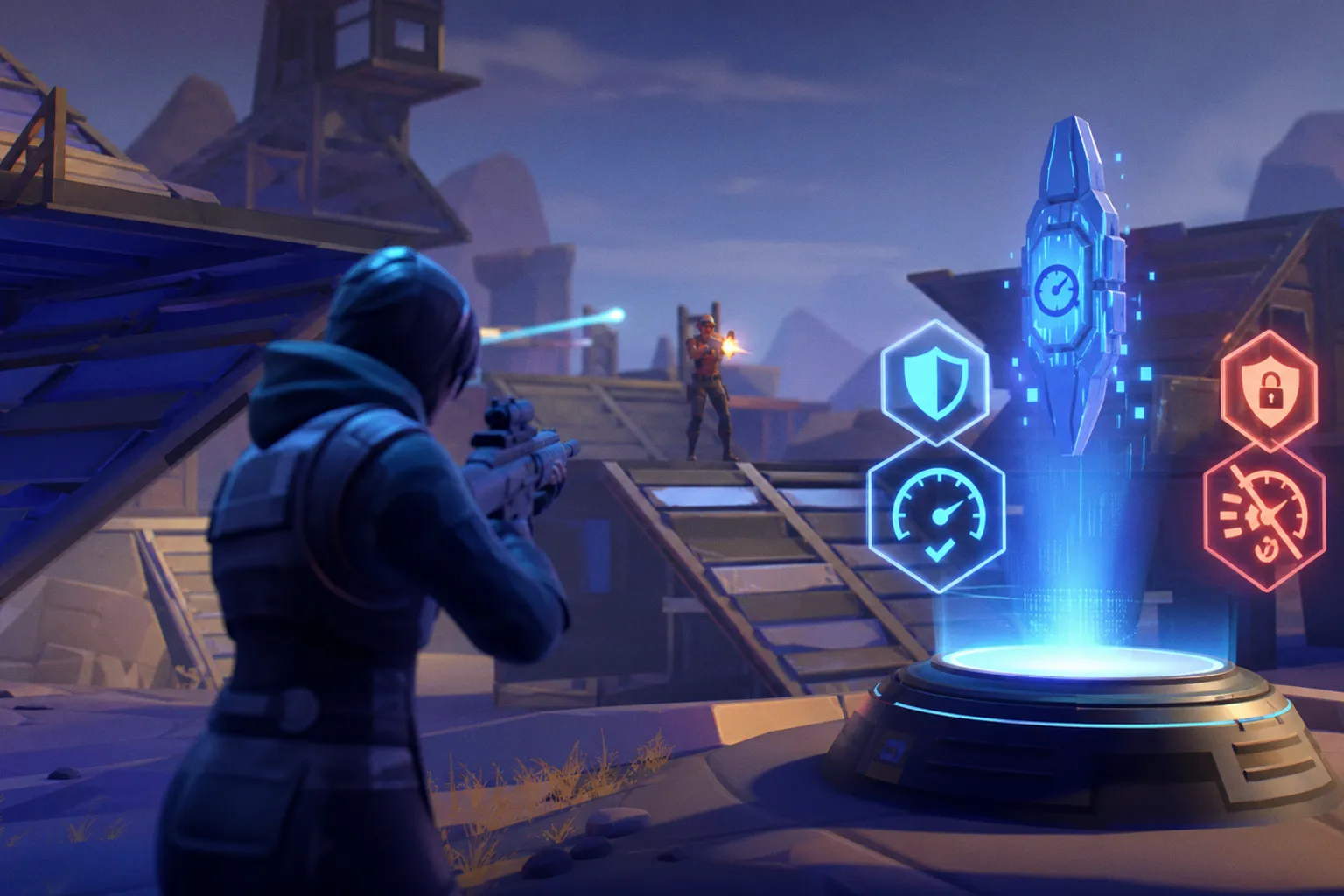
Input lag on restricted school hardware comes from a combination of default browser settings, aggressive graphical presets, cached data slowdowns, and network throttling imposed by your school's infrastructure. None of these are permanent problems. Let me walk you through each layer — from Chrome settings you can actually change, to in-game adjustments that squeeze maximum responsiveness out of modest hardware, to the network realities you will have to work around rather than fight.
Optimizing Chrome Browser Settings for Gaming
The Chrome browser on most school-issued Chromebooks ships with settings tuned for battery life and general browsing, not for a fast-paced building-and-shooting game. The single biggest lever you can pull is hardware acceleration — a setting that offloads rendering tasks from your CPU to the GPU.
For related context, see EIGHT TEAMS EMERGE VICTORIOUS FROM THE 2026 ASIAN GAMES ESPORTS QUALIFIERS: PUBG.
For related context, see Middle School Science Games: 3 New Releases for July 2026.
Here is how to check it:
1. Open Chrome and click the three-dot menu in the top-right corner.
2. Navigate to Settings → System.
3. Look for "Use hardware acceleration when available." Toggle it on if it is off.
4. Restart Chrome completely (close all windows and reopen).
You will notice smoother frame delivery right away if this setting was previously disabled. On many school Chromebooks, administrators lock this toggle or ship the device with hardware acceleration off by default. If the switch is greyed out, you cannot override it — that is a district-level restriction, and there is no legitimate workaround for it.
If your Chromebook lets you enable hardware acceleration, do it before touching anything else. It is the single highest-impact setting change for browser-based gaming performance.
Beyond hardware acceleration, Chrome's experimental flags page (chrome://flags) offers a few tweaks worth checking:
#enable-gpu-rasterization— forces the GPU to handle page rendering instead of the CPU. Set to Enabled.#enable-zero-copy— reduces the number of times texture data gets copied in memory, which can shave off a few milliseconds of rendering overhead. Set to Enabled.#canvas-oop-rasterization— moves canvas rendering to a separate process. Set to Enabled if available.
After changing any flags, Chrome will prompt you to relaunch. Do it. These adjustments are not magic — they will not transform a Celeron-powered Chromebook into a gaming rig — but each one removes a small layer of overhead that compounds into noticeable input delay during fast-paced gameplay.
In-Game Graphical Adjustments for Maximum Responsiveness
This is where you get the most dramatic improvement with the least effort. 1v1.LOL has its own settings menu, and the defaults are almost never optimized for low-end hardware.
Once you are in a match (or in the lobby), open the Settings gear icon and adjust the following:
| Setting | Recommended Value | Why It Matters |
|---|---|---|
| Resolution Scale | 75–80% | Renders the game at a lower internal resolution, massively reducing GPU load |
| Graphics Quality | Low | Disables shadows, post-processing, and particle effects that eat frames |
| Render Distance | Low | Limits how much of the map is drawn at once, freeing up memory |
| FPS Limit | 60 | Caps frames at a stable target rather than letting the GPU spike and dip |
| V-Sync | Off | Eliminates the frame-pacing delay that V-Sync introduces |
You will notice the visual downgrade immediately — textures look softer, shadows disappear, and the environment feels flatter. But you will also notice that your crosshair responds the instant you move your mouse, builds place on the exact beat you click, and edits feel fluid instead of rubbery. That trade-off is absolutely worth it in a competitive game where a single lost frame can mean a lost fight.
A target frame rate of 60 FPS is realistic even on modest Chromebook hardware if you drop the resolution scale and quality settings. If your device struggles to hold 60, try lowering the resolution scale to 70% — the game will look noticeably pixelated, but the responsiveness gain is substantial. Competitive players care about snappy controls far more than sharp textures, and in a game like 1v1.LOL where building speed is survival, every millisecond counts.
Managing Background Processes and Browser Data
School Chromebooks tend to accumulate a surprising amount of digital clutter over a semester. Browser cache, cookies, abandoned extensions, and a dozen open tabs all compete for the same limited RAM and CPU cycles your game needs.
Clearing your browser cache and cookies is step one:
1. Press Ctrl + Shift + Delete in Chrome.
2. Set the time range to "All time."
3. Check "Cached images and files" and "Cookies and other site data."
4. Click "Clear data."
This prevents the accumulation of temporary files that slow down browser performance over time. You will notice pages (including 1v1.LOL) load faster after a fresh cache clear, and the browser's memory footprint drops noticeably.
Next, audit your extensions. Every active extension — ad blockers, grammar tools, tab managers — runs background processes that consume resources. Open chrome://extensions and disable anything you do not absolutely need while playing. You can re-enable them afterward. Even a single heavy extension can introduce micro-stutters that feel like input lag.
Finally, close every unnecessary tab before launching 1v1.LOL. Each open tab holds its own memory allocation. On a Chromebook with 4 GB of RAM — which is common for school-issued models — having ten tabs open while trying to play can eat half your available memory before the game even loads. You want the browser's full attention on the game.
A clean browser session — no extra tabs, no active extensions, fresh cache — gives your Chromebook the breathing room it needs to deliver frames on time.
Understanding Network Constraints and Hardware Limitations
Here is the part where I have to be honest with you: some sources of input lag are outside your control.
School networks are typically managed by IT departments that prioritize educational traffic over everything else. Firewalls and traffic-shaping protocols can throttle gaming packets, introducing network latency that no amount of settings tweaking can fix. If you consistently see ping numbers above 50–60 ms in 1v1.LOL's server browser, the network is likely the bottleneck, not your device.
The ideal ping range for competitive play is roughly 10–20 ms. If you are stuck at 80+ ms, you will feel it as a persistent, mushy delay between your inputs and the game's response — distinct from the frame-rate-based lag that graphical settings can address. In that situation, your options are limited: play during off-peak hours when network traffic is lower, or connect to the geographically closest game server if the game allows server selection.
Hardware limitations are the other wall you will hit. A Chromebook with a low-end Celeron processor and integrated graphics has a floor for how responsive any browser game can feel, no matter how aggressively you optimize. The adjustments in this guide will push that hardware to its maximum potential — but its maximum potential might still feel slower than a dedicated gaming PC. That is physics, not a settings problem.
The concept of latency is universal across all kinds of tech, whether you are optimizing a browser game or tuning signal timing in an audio system — the goal is always to shorten the gap between input and output. In gaming, every layer of software overhead adds to that gap, and your job is to strip away the layers you can control.
What you should not do is waste time on so-called "lag fix scripts" or "performance hacks" you find in random forum posts. These are almost always ineffective, and a significant number are outright malicious — designed to inject ads, steal credentials, or install unwanted software on your device. Stick to legitimate settings adjustments.
Quick-Reference: The Complete Optimization Checklist
Here is the full sequence, in the order you should tackle it:
1. Enable hardware acceleration in Chrome settings (if not locked by admin).
2. Set Chrome flags for GPU rasterization and zero-copy rendering.
3. Clear browser cache and cookies completely.
4. Disable non-essential extensions for your gaming session.
5. Close all unnecessary tabs to free up RAM.
6. Lower in-game resolution scale to 75–80%.
7. Set graphics quality to Low and disable V-Sync.
8. Test your ping — if it is consistently above 50 ms, the network is the issue.
9. Restart Chrome after all changes and launch 1v1.LOL fresh.
Go through this list once, and you will have done everything within your power to minimize input lag. The combination of browser optimization, in-game graphical tuning, and a clean system state addresses the vast majority of delay issues players experience on school Chromebooks.
If You Like 1v1.LOL, Try These Too
Once your controls feel snappy and responsive, you might want to explore other browser games that scratch a similar itch. Here are a few worth your time:
- Shell Shockers — a first-person shooter where every player is an egg. It sounds absurd, and it is, but the shooting mechanics are tight and the matches are fast. Runs well on Chromebooks with similar low-graphics settings.
- BuildNow GG — the closest browser-based cousin to 1v1.LOL, with building mechanics and third-person shooting. If you have refined your build-and-edit speed in 1v1.LOL, those skills transfer directly.
- Krunker.io — a blocky FPS with surprisingly deep movement mechanics. The low-poly art style means it runs smoothly on nearly any hardware, and the skill ceiling is high enough to keep you engaged for months.
Each of these titles benefits from the same optimization principles: clean browser session, low graphical settings, and a stable network connection. The specifics will vary, but the philosophy is identical — strip away every source of overhead so your inputs hit the game engine as fast as possible.
Input lag on a school Chromebook is frustrating, but it is not unbeatable. You have a real, actionable sequence of steps that addresses browser settings, in-game graphics, system clutter, and network realities. Start with hardware acceleration and the in-game resolution slider — those two changes alone will transform how 1v1.LOL feels on restricted hardware. The rest is polish. Get in there, tighten up your setup, and enjoy the game the way it was meant to feel — fluid, responsive, and entirely under your control.