Browser game development 2015: Canvas rendering fixes
Browser game development in 2015 had a very specific kind of itch: make an HTML5 game feel as snappy as the old Flash version, inside a browser that was suddenly less willing to tolerate plugins, on…
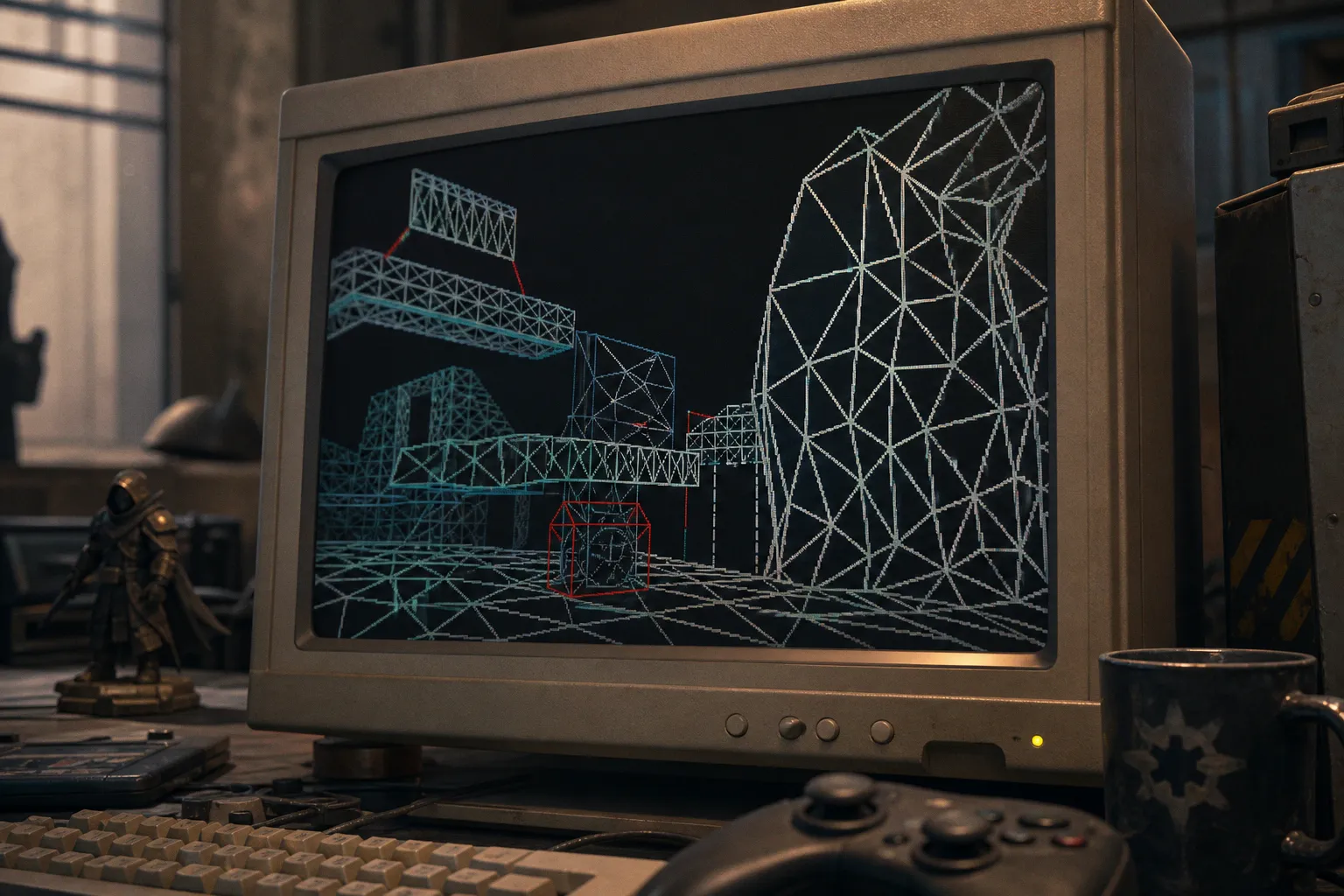
Browser game development in 2015 had a very specific kind of itch: make an HTML5 game feel as snappy as the old Flash version, inside a browser that was suddenly less willing to tolerate plugins, on hardware that ranged from office desktops to early mobile browsers with wildly uneven graphics support. The time commitment to fix one obvious stutter could be ten minutes if the issue was a runaway redraw. It could also become a full afternoon of profiling, object reuse, and cross-browser testing if the lag lived deeper in the loop.
If you are fixing old HTML5 games now, or trying to understand why a 2015-era browser game feels jittery, the culprit is usually not “HTML5 is slow.” That was the lazy diagnosis then, and it is still too blunt now. More often, the game is spending its precious 16 milliseconds per frame redrawing too much, allocating too many short-lived objects, or asking WebGL to behave consistently across browsers that simply did not agree on the details.
The 2015 Flash exodus changed the shape of browser games
The reason browser game development in 2015 feels like a turning point is not just nostalgia. It was a real technical squeeze. Chrome ended support for NPAPI plugins in 2015, and other major browsers had already been restricting or discouraging plugin-based experiences. Flash games that once lived inside a familiar plugin box were being pushed toward HTML5 Canvas, JavaScript, and WebGL.
That transition was exciting, but it was not frictionless. Flash gave many small teams a stable authoring target. HTML5 gave them openness, mobile potential, and no plugin install — but also a grab bag of browser quirks, rendering paths, and performance traps.
You will notice this immediately when you load a legacy HTML5 port from that era. The art may look fine. The controls may respond. Then the game starts scrolling, spawning particles, or updating a busy UI, and suddenly the whole thing gets syrupy. Not broken, exactly. Just soft around the edges. A platformer jump lands a fraction late. A tile-matching cascade hiccups. A racing game feels like the road is being poured in chunks.
That sensation usually comes from one of four places:
| Symptom you feel in play | Likely 2015-era cause | First fix to try |
|---|---|---|
| Regular stutter during movement | Canvas redraws too much each frame | Use dirty rectangle rendering or layer static elements |
| Random pauses during action | Garbage collection interrupts the loop | Reuse objects through pooling |
| 3D scene runs well on one browser, badly on another | WebGL support or driver path differs | Add feature checks and fallback settings |
| Game works until browser update, then fails | Plugin-era dependency or NPAPI assumption | Remove plugin calls and move assets/input to web APIs |
| Mobile browser feels much worse than desktop | Fragmented WebGL and Canvas performance | Reduce draw calls, texture size, and effects |
The best fixes are not glamorous. They are tidy, practical, and a little ruthless. You trim what the browser has to do every frame. You stop creating garbage. You draw only what changed. You treat 60 FPS as a budget, not a wish.
In a 2015 HTML5 game, smoothness usually came from restraint: fewer redraws, fewer allocations, fewer assumptions about the browser.
Start with the frame budget, not the art assets
A smooth browser game wants to hit 60 FPS. That gives you roughly 16 milliseconds to complete the frame: read input, update the game state, run collisions, animate sprites, draw the scene, and let the browser do its own work too. Sixteen milliseconds sounds generous until a few careless systems start nibbling at it.
This is where I like to begin when fixing legacy browser game canvas lag. Not with a full rewrite. Not with a new engine. First, find out what the frame is spending.
In a 2D Canvas game from the 2015 period, the heavy part is often not the logic. It is the drawing. The Canvas API is intuitive — which is part of its charm — but that also made it easy to brute-force the whole screen every tick. Clear the canvas. Redraw the background. Redraw every tile. Redraw every sprite. Redraw every UI number. Do that sixty times a second and hope the browser keeps up.
Sometimes it does. Sometimes it very much does not.
A practical first pass looks like this:
1. Separate static and moving visuals. Backgrounds, fixed UI frames, and non-animated scenery do not need to be redrawn every frame. Put them on a separate canvas layer or cache them into an offscreen buffer where possible.
2. Measure before changing everything. Use the browser’s performance tools to see whether time is going into scripting, rendering, or painting. If drawing dominates, Canvas strategy matters. If scripting dominates, look at allocations and loops.
3. Turn off expensive effects one at a time. Shadows, alpha-heavy particle fields, scaling large images, and frequent text drawing can all bite harder than expected in older Canvas paths.
4. Watch the spikes, not just the average. A game can report a decent average frame rate and still feel bad if every few seconds it drops hard. Players feel the hitch, not the spreadsheet.
The moment-to-moment feel improves when the loop becomes predictable. A game that runs at a slightly lower but steady frame rate often feels better than one that flirts with 60 FPS and then coughs every time the scene gets busy.
Dirty rectangle rendering: the old-school fix that still earns its keep
Dirty rectangle rendering sounds like something pulled from a dusty programming book, but in 2015 it was one of the most practical Canvas fixes around. The idea is simple: do not redraw the whole canvas if only part of the screen changed.
Instead, track the rectangular areas that were affected by movement or animation — the “dirty” areas — clear those parts, and redraw only what belongs there. For puzzle games, board games, simple platformers, menu-heavy games, and many educational games, this can be the difference between a fluid loop and a sluggish one.
The approach works best when the screen is mostly stable. Think of a grid-based game where only a few tiles animate after a move. Redrawing the entire board every frame is wasteful. Redrawing the changed cells is lean and snappy.
Where dirty rectangles help most:
- Tile maps with limited movement. If only the player and a few enemies move, most of the map can stay untouched.
- Puzzle games with discrete animations. Swaps, drops, score popups, and highlights usually affect small regions.
- UI-heavy games. Buttons, meters, and text fields often change independently from the playfield.
- Low-power devices. Anything that reduces full-canvas repainting can make older laptops and school machines feel less strained.
Where they become less fun:
- Full-screen scrolling games. If the whole world moves every frame, nearly everything is dirty anyway.
- Particle-heavy action games. Many tiny moving elements can create a messy patchwork of dirty areas.
- Rotated or scaled sprites. Rectangles get larger than the visible object, and bookkeeping grows less tidy.
- Complex overlap. If many sprites stack, you need to redraw everything that intersects the dirty region, not just the thing that moved.
The trick is not to worship the technique. Dirty rectangles are a tool, not a religion. If your dirty-region tracking becomes more expensive than simply redrawing the frame, you have lost the plot. I usually look for the easy wins first: static background caching, separate UI canvas, and limited redraw zones for obvious moving pieces.
A clean dirty-rectangle workflow
For a 2015-style Canvas game, the practical loop usually looks like this:
1. Store each moving object’s previous bounds. Before updating position, keep the old rectangle.
2. Update the object. Move the player, enemy, projectile, tile, or animation.
3. Store the new bounds. The old and new rectangles are both dirty.
4. Merge nearby dirty rectangles when sensible. Too many tiny clears can become its own overhead.
5. Clear only the dirty areas. Avoid wiping the entire canvas unless the scene demands it.
6. Redraw objects that intersect those areas. This includes background tiles or sprites that were covered.
7. Leave untouched pixels alone. That is the whole point.
You will notice the game feel tighter when the browser stops repainting scenery that has not changed. It is not a flashy optimization, but it has that lovely practical magic: same art, same gameplay, less waste.
WebGL 1.0 helped, but it was not a magic wand
WebGL 1.0, based on OpenGL ES 2.0, gave browser games direct access to GPU-accelerated graphics through the HTML5 Canvas element. By 2015, that mattered a lot. If Canvas 2D was the reliable workhorse for sprites and interfaces, WebGL was the door into richer effects, 3D scenes, and heavier visual throughput.
But here is the friendly warning I wish more migration guides had stamped in bold back then: WebGL did not make every game fast by default. It made a faster path possible if the game used it well and the browser supported it cleanly.
The rough edges were real. Desktop support was better than mobile support, but even there, hardware drivers and browser behavior could differ. Mobile WebGL support in 2015 was fragmented enough that treating it as guaranteed was asking for trouble. Some players would get a fluid scene. Others would get missing textures, black canvases, or performance that fell apart under effects.
For fixing webgl rendering issues 2015 projects, I usually separate problems into two buckets:
| Issue | What it feels like | Sensible response |
|---|---|---|
| Context creation fails | Game never reaches the scene | Detect WebGL support and offer Canvas fallback |
| Shader or precision trouble | Effects look wrong or fail on some devices | Simplify shaders and test precision assumptions |
| Too many texture swaps | Frame rate drops during busy scenes | Atlas sprites and reduce state changes |
| Oversized textures | Slow loading or black/missing assets | Use smaller texture sizes and compressed assets where appropriate |
| Weak fallback path | Game works only on ideal machines | Keep a lower-effect mode ready |
If the game is 2D, WebGL can still help through batched sprite rendering. But for a small legacy project, moving from Canvas 2D to WebGL may be more work than the game deserves. I would not prescribe it automatically. A puzzle game with simple animations might be better served by dirty rectangles and object pooling. A scrolling action game with lots of sprites may benefit from WebGL batching. A 3D game from that period probably needs WebGL, but also needs careful fallbacks.
This is also where browser games brushed up against a broader lesson from educational and touch-based play: when the input surface or display setup is slightly off, the whole game feels wrong. If you have ever had to calibrate an iPad base to fix reflector errors, you know the same basic truth applies — smooth play depends on the boring alignment work happening underneath.
Garbage collection pauses: the invisible hitch in the loop
Some lag does not come from drawing at all. It comes from memory churn.
JavaScript garbage collection is the browser cleaning up objects that are no longer used. That sounds helpful, and it is. But in a real-time game loop, cleanup can arrive like a tiny speed bump under the wheels. If your game creates lots of short-lived objects every frame — bullets, particles, collision boxes, vector objects, animation wrappers — the garbage collector eventually has to deal with the mess.
In a browser game, that often feels like random stutter. The game runs fluidly, then hiccups. Runs fluidly again, then hiccups. If the pauses line up with heavy spawning, explosions, level transitions, or UI bursts, memory allocation is a strong suspect.
The classic 2015 mitigation was object pooling: instead of constantly creating and destroying objects, you reuse them.
Here is the plain-English version. A bullet does not need to vanish from existence when it leaves the screen. It can be marked inactive, stored in a pool, and revived the next time the player fires. Same for particles, floating damage numbers, enemies in arcade waves, and temporary collision helpers.
Good candidates for pooling include:
- Projectiles that spawn frequently and disappear quickly.
- Particles used for smoke, sparks, coins, dust, and impact effects.
- Enemy instances in wave-based arcade games.
- Floating text such as score popups or damage numbers.
- Temporary rectangles or vectors used in collision checks.
- Audio event wrappers if the game creates them repeatedly during action.
Bad candidates are objects that rarely appear or have wildly different shapes and lifetimes. Pooling everything can make code harder to follow without giving much back. Again, the goal is smooth play, not collecting optimization badges.
The browser does not care that your explosion looks tiny. If it creates 400 throwaway objects, the cleanup bill still comes due.
How object pooling changes the feel
The first thing you notice after cleaning up allocation-heavy code is not always a higher frame rate. It is steadiness. The game stops tripping over itself during the fun parts. Shots fire with the same rhythm. Pickups collect without a micro-pause. Particle effects stop feeling like a punishment.
That steadiness matters because browser games live or die on immediacy. Players click, tap, or press a key and expect the game to answer. Downloads are not part of the bargain. Installation is not part of the bargain. The browser window is the whole stage, and any hitch feels personal.
For fixing old HTML5 games, I would inspect these spots early:
1. The main update loop. Look for new arrays, new vector objects, or fresh object literals created every tick.
2. Collision detection. Temporary bounds objects are common little offenders.
3. Particle systems. They can create charming effects and terrifying allocation patterns.
4. Input handlers. Repeatedly creating event-related wrappers can add up.
5. Text rendering systems. Score bursts and labels sometimes allocate more than expected.
A simple pool with active and inactive lists is often enough. You do not need a grand architecture. You need the loop to stop making trash at arcade speed.
Canvas layers can save a game from doing the same work twice
Layering is one of those fixes that feels obvious after you use it. Instead of one canvas doing everything, split the scene into a few canvases stacked together: background, gameplay, effects, UI. Each layer updates only when needed.
This was especially useful for legacy browser games because many of them were visually simple but structurally wasteful. A static background would be redrawn every frame. A score panel would be repainted even when the score did not change. A menu overlay would force the entire playfield through needless redraws.
A clean layer setup might look like this:
| Layer | What belongs there | Redraw rhythm |
|---|---|---|
| Background | Static scenery, board frame, non-moving map elements | Once per level or when camera changes |
| Game objects | Player, enemies, moving tiles, projectiles | Every active frame |
| Effects | Particles, flashes, temporary animations | Only while effects are active |
| UI | Score, timer, health, buttons | When values or state change |
The benefit is not only performance. It also makes the game easier to reason about. When the UI flickers, you know where to look. When particles slow the game, you can disable the effects layer and compare. When the background is expensive, you can cache it without touching player movement.
There are tradeoffs. More canvases mean more compositing work for the browser, so stacking ten layers is not automatically better than using one. But two to four thoughtful layers often hit a sweet spot for 2D HTML5 games from this era.
You will notice the biggest improvement in games with stable scenery and active foreground elements. A card battler, tower defense game, puzzle board, or educational mini-game can benefit quickly. A full-screen runner with constant parallax may need a more careful approach.
Cross-browser compatibility was part of the performance job
The phrase “works in the browser” sounded wonderfully simple in 2015, but it hid a lot of tiny traps. Chrome, Firefox, Safari, and mobile browsers did not always agree on performance characteristics, WebGL behavior, audio unlocking, input timing, or plugin fallback. Add the NPAPI restrictions and the Flash-to-HTML5 migration errors, and developers were often fixing three categories of bugs at once: rendering, runtime behavior, and access.
If you are maintaining a browser game from that period, do not assume a bug is purely graphical just because it appears on the canvas. A rendering symptom can come from a loading path, a missing fallback, a browser-specific API assumption, or a timing issue introduced when the old Flash wrapper disappeared.
A practical compatibility pass should include:
- Feature detection instead of browser guessing. Ask whether Canvas, WebGL, audio, storage, or pointer features exist. Do not rely on old user-agent assumptions.
- Graceful fallback for WebGL. If the context fails, the game should explain the problem or switch to a lighter renderer where possible.
- Asset loading checks. Make sure images, audio, and texture files are fully ready before the game loop depends on them.
- Input sanity testing. Mouse, touch, keyboard, and pointer events can overlap in messy ways on older mobile browser paths.
- Frame timing review. Avoid tying movement directly to frame count. Use time deltas so a dip does not change game speed wildly.
- Plugin dependency removal. Any leftover NPAPI or Flash bridge assumption needs to go. It is not a fallback anymore; it is a dead end.
This is also why old games sometimes feel worse after being “lightly updated.” A developer may remove the Flash shell but leave behind timing assumptions, asset pacing, or rendering habits that only made sense in the old environment. The game loads, yes. But the loop has not been properly re-tuned for HTML5.
A practical repair order for legacy HTML5 canvas lag
When a reader asks me where to begin, I like an order that protects momentum. You want to find the obvious wins before reaching for big rewrites. The repair path below is not fancy, but it is dependable.
1. Confirm the target behavior. Decide whether the game truly needs 60 FPS, or whether a steady 30 FPS is acceptable for its genre. Fast platformers and action games want the sharper response. Puzzle and management games can often feel fine with less, if input remains responsive.
2. Profile a normal play session. Do not only test the title screen. Play the busiest level, trigger effects, open menus, spawn enemies, and watch where time goes.
3. Reduce full-canvas redraws. Cache static visuals, split layers if helpful, and consider dirty rectangle rendering for scenes with limited movement.
4. Trim expensive Canvas operations. Watch for repeated text drawing, large image scaling, shadows, transparency stacks, and unnecessary clears.
5. Remove allocation spikes. Pool bullets, particles, enemies, temporary collision objects, and score popups where they churn heavily.
6. Check WebGL only where it fits. If the game’s visual workload calls for GPU acceleration, use WebGL thoughtfully. If not, a cleaner Canvas loop may be faster to maintain.
7. Test across real browsers. Especially for 2015-era code, one successful desktop run is not enough. Try Chrome, Firefox, Safari where relevant, and at least one mobile browser if the game claims mobile support.
8. Keep a lower-effect mode. Reduce particles, shadows, high-resolution textures, and screen effects for weaker devices. Players prefer a clean, playable version to a prettier one that lags.
That order keeps the work grounded in the actual play experience. It also prevents the classic mistake: rewriting the renderer when the real hitch is a particle system creating thousands of tiny objects.
What not to over-fix
There is a fun trap in browser game repair: once you start finding inefficiencies, you want to sand down everything. Resist that urge. A small web game should remain approachable, both for the player and for whoever maintains it next.
Do not convert a simple board game to WebGL just because GPU acceleration sounds stronger. Do not build a sprawling pooling framework for three enemies. Do not turn dirty rectangle tracking into a geometry project if the screen changes constantly anyway. And do not chase perfect 60 FPS on hardware where the game’s genre does not need it.
Better questions are more modest:
- Does input feel immediate?
- Do the worst stutters happen during normal play or only during rare transitions?
- Does the fix make the code clearer or more fragile?
- Does the game fail gracefully when WebGL is unavailable?
- Can a player on an ordinary browser enjoy the first minute without fighting the tech?
That first minute matters. Browser games are wonderfully impatient. The player arrives, clicks, and expects the loop to start. If the game feels fluid quickly, they stay. If it stalls, they vanish into another tab.
The real lesson from browser game development in 2015
The 2015 shift from Flash to HTML5 did not produce one clean solution. It produced a toolkit: Canvas for accessible 2D rendering, WebGL 1.0 for GPU-backed graphics, dirty rectangles for careful redraws, object pooling for steadier memory behavior, and feature detection for a browser landscape that refused to be perfectly uniform.
The best legacy fixes still come from matching the tool to the game’s actual rhythm. A puzzle game wants restrained redraws. An arcade shooter wants pooled projectiles and particles. A 3D browser game wants WebGL checks and fallback plans. A menu-heavy educational game wants clean layers and dependable input.
If you are reviving or maintaining one of these games now, start with the feel. Play until you can name the hitch. Then profile it, trim the waste, and keep the loop honest. That is where old HTML5 games become snappy again — not by pretending 2015 browsers were limitless, but by respecting exactly where their limits were.